Refocused 1.0.11: Enhance drafts, bulk actions in Videos, intermediate file formats, and bug fixes
In this article
Refocused 1.0.11 is out now for all platforms. Primarily some bug fixes and some quick UI/feature requests: drafts in Enhance, easier clean-up in Videos, and stricter handling of the files a multi-stage job writes between stages.
Enhance drafts
Until now, leaving the Enhance screen threw away whatever you had set up. Clicking another screen in the sidebar was enough, and so was pressing a number key, since the number keys switch screens.
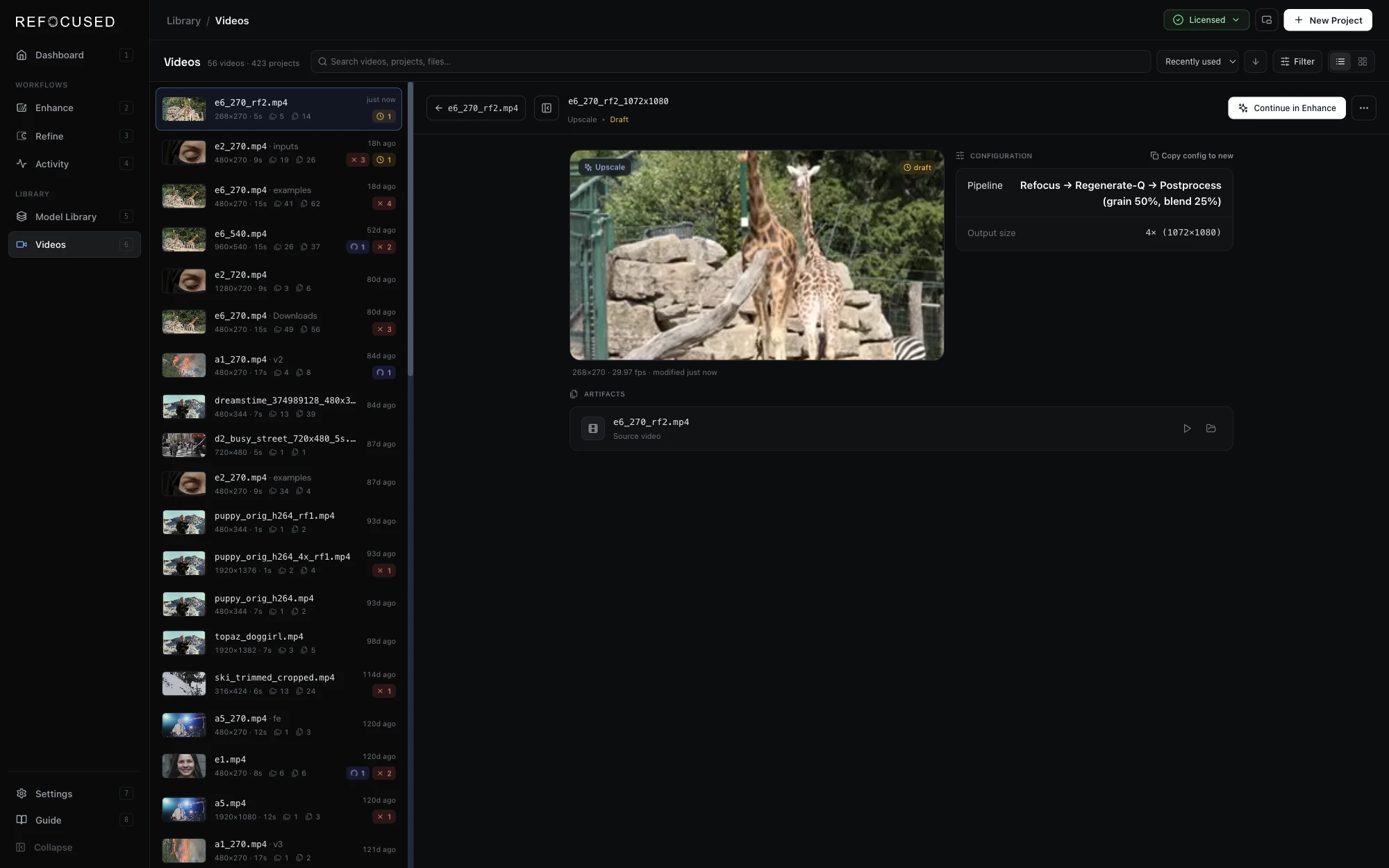
In 1.0.11 your setup is kept as a draft. Leaving Enhance and coming back returns you to the same video, step and settings, including a trim or crop made in the edit step. Once you have reached the settings step, the draft is also saved under its video in Videos, so it is still there after you close the app. There is one draft per video. To pick it up again, open the draft in Videos and choose Continue in Enhance, or open the same video in Enhance. Starting the job removes the draft.
Videos: right-click menus, multi-select and bulk delete
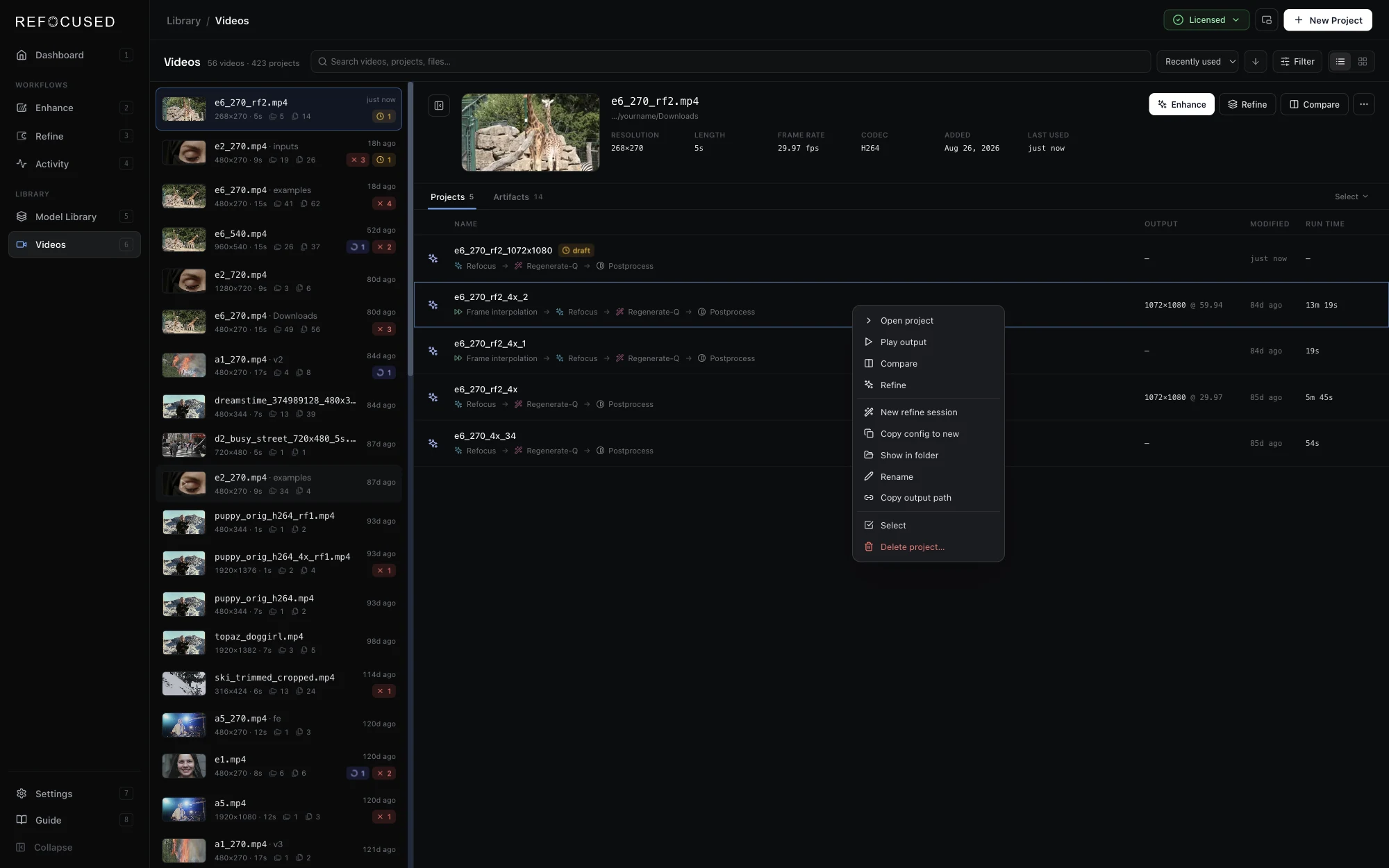
Videos and projects now have a right-click menu. For a video it offers Enhance, Refine, Compare latest output, Play, Show in folder, Copy file path and Remove from Videos. For a project it offers Open, Rename, Copy output path, Select and Delete project, along with the project's own actions. The same menu opens from the ⋯ button on a project row.
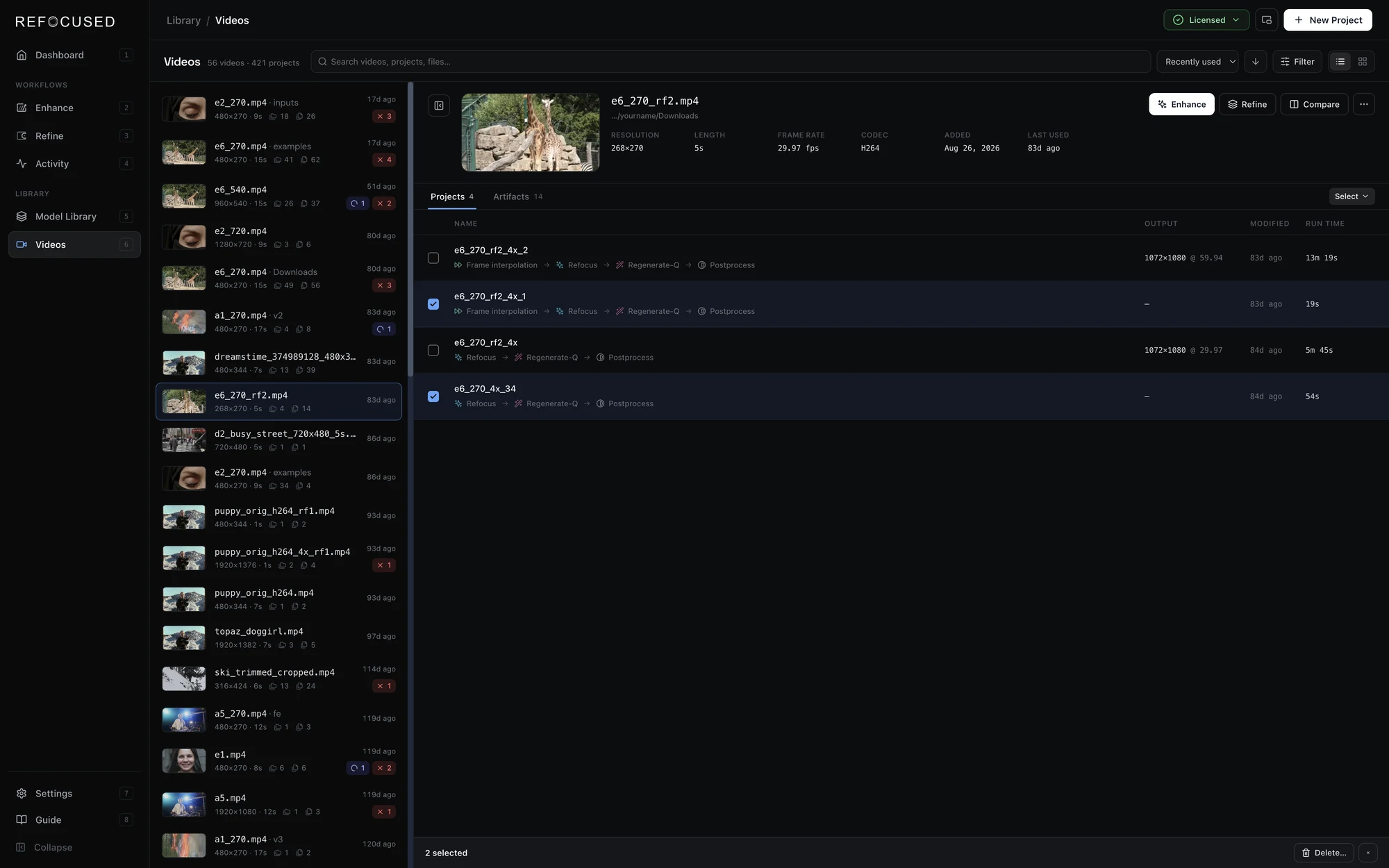
To work on several at once, tick the box that appears when you hover over a row, or use Cmd-click (Ctrl-click on Windows and Linux) and Shift-click. Cmd/Ctrl+A selects every project of the open video, and the video's menu can select all of its failed projects or all of its drafts. A bar under the list then offers Delete and, for failed jobs, Resume failed. Delete or Backspace opens the same delete dialog, and Esc clears the selection.
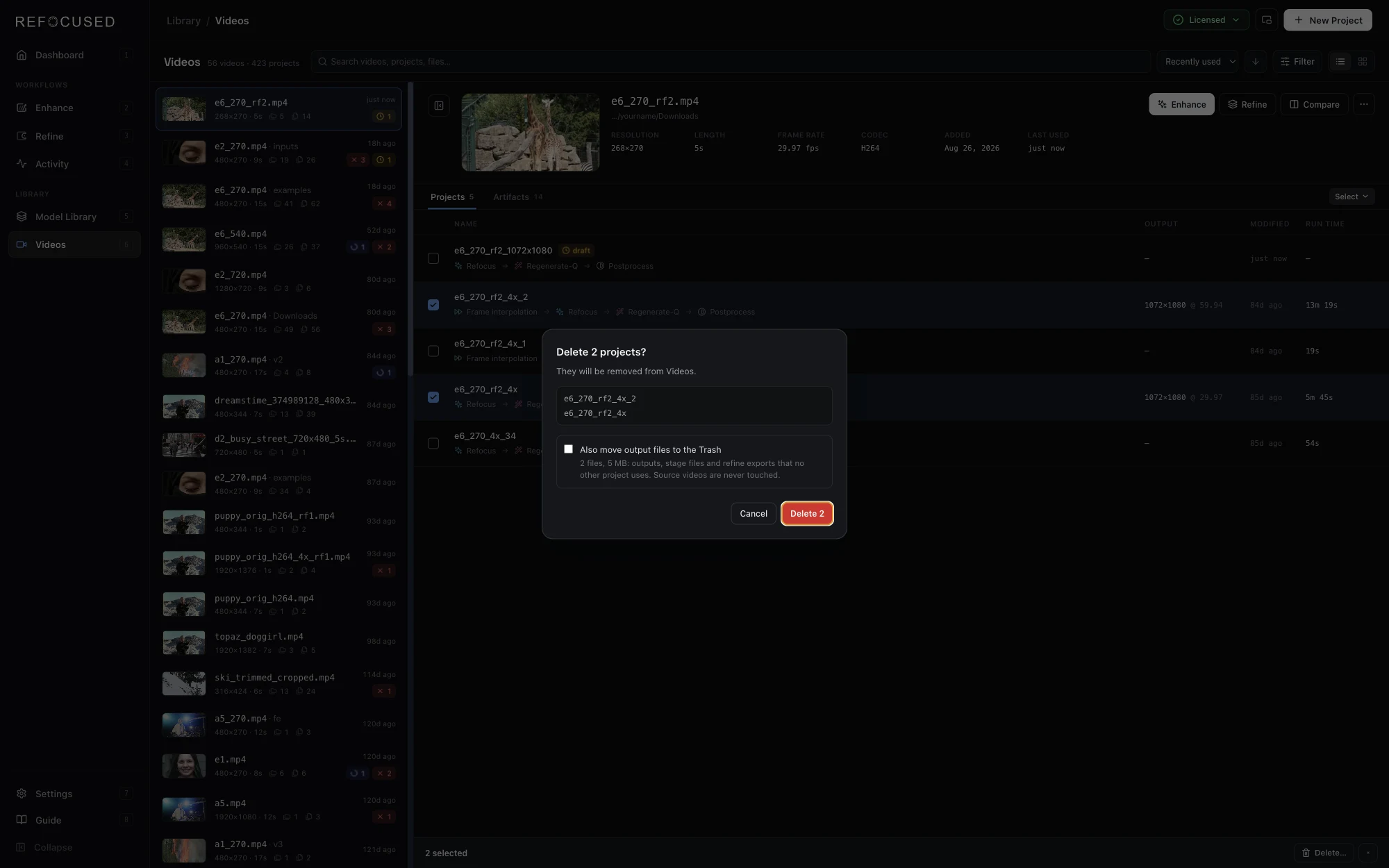
Deleting removes projects from Videos and leaves the files on disk, as before, and right after such a delete you can undo it. The delete dialog now also has an Also move output files to the Trash option (the Recycle Bin on Windows), off by default, which shows how many files and how much space that covers. It moves outputs, stage files and Refine exports that no other project uses. Source videos are never touched, and running jobs are skipped.
Intermediate file formats
A multi-stage job writes a file between stages, for example the Regenerate-Q result that the grain and blend stage then reads. 1.0.11 tightens how those files are written:
- Intermediates use the final output's format. A ProRes or FFV1 job no longer passes through a lossy file on the way. When the output is an image sequence, intermediates are lossless FFV1.
- An Intermediate format setting per stage. Click a stage in the pipeline sidebar and set Intermediate format at the bottom of its settings to use something else for that stage, such as a smaller H.265 file. The last stage always uses the Output settings.
- No silent substitution. The engine used to replace an encoder it could not use with another one, and could drop a 10-bit file to 8-bit while doing it, noting that only in the log. It no longer does this for a file a later stage reads, and it never drops 10-bit to 8-bit.
- The whole job is checked before it is queued. If any stage cannot run as set up, Start job answers with the reason and nothing is queued. A job submitted while another one is running gets the same check when its turn comes, before its first stage starts. Previously a problem in a later stage only showed up after the earlier stages had run, which could be hours.
- The format list only offers encoders your computer has. A format restored from a saved pipeline or from Copy config to new that is not available on this computer is replaced, with a note saying so.
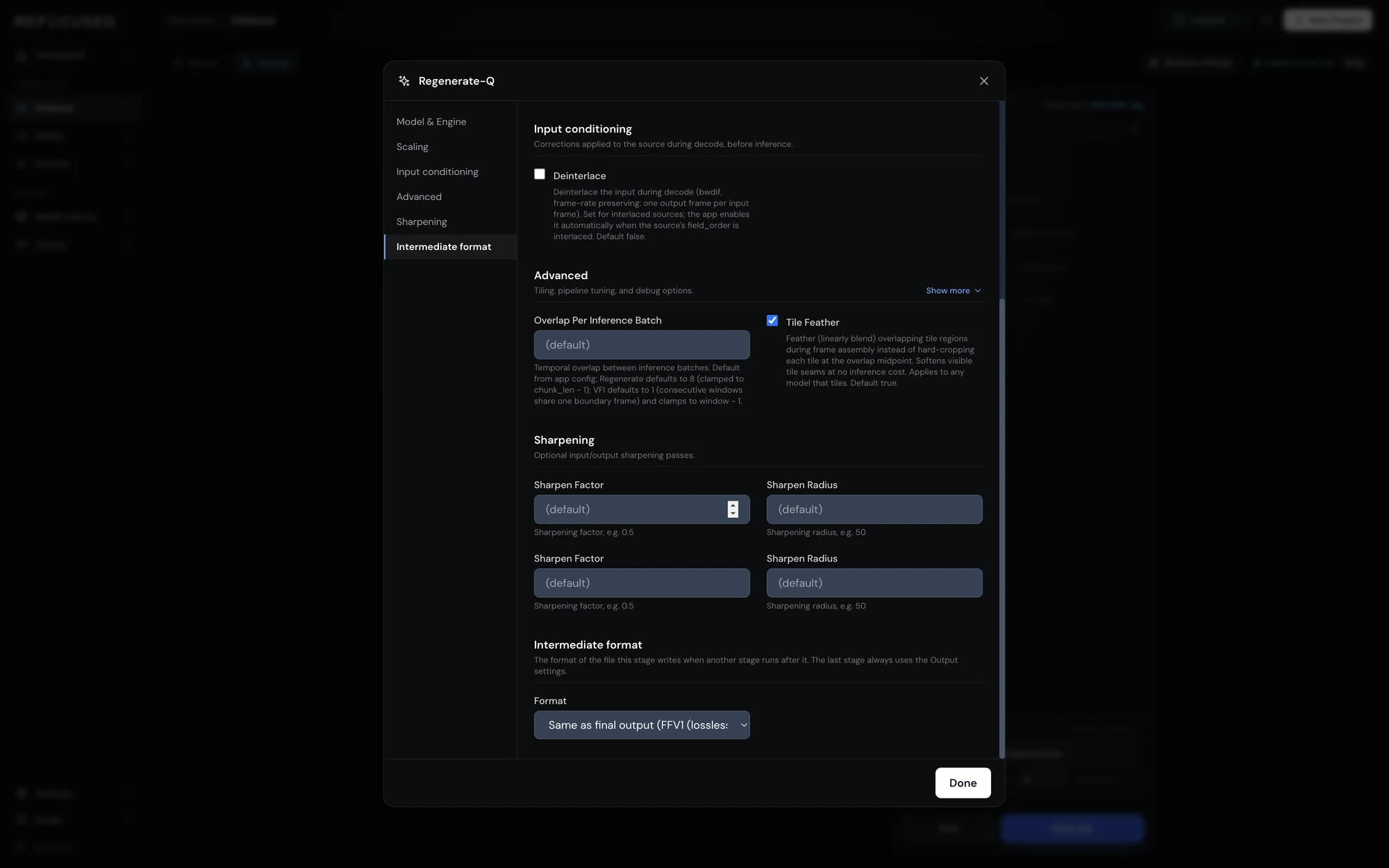
This also fixes a failure we saw in a customer's log: a stage reached the engine without its encoder settings, was written as 8-bit H.265 in an .mp4, and the next stage then failed with "Could not open video file" because it looked for the format the job had asked for. One setup that caused this was image-sequence output with grain or blend turned on.
A job's settings in Videos
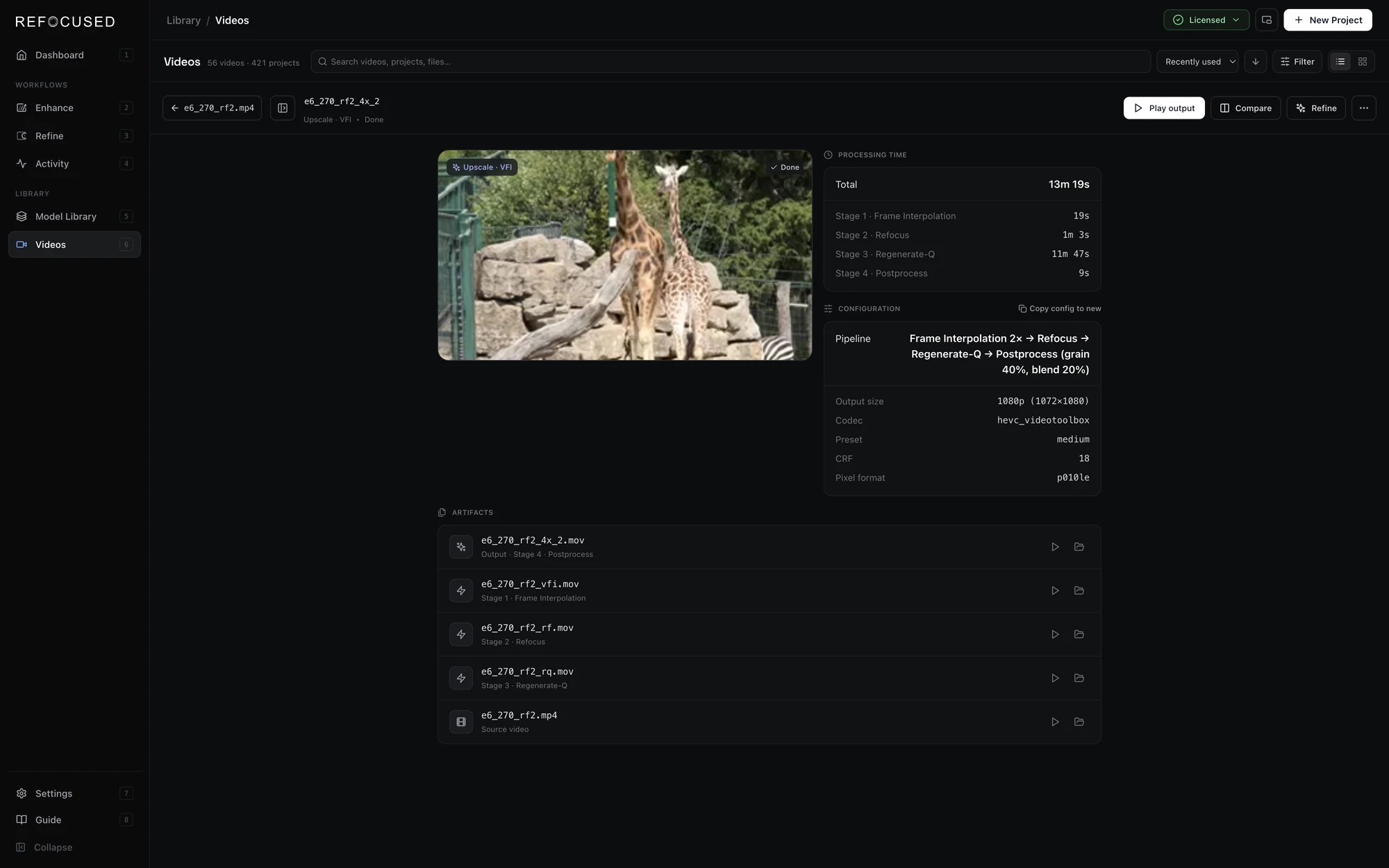
A project's Configuration panel now lists each stage with its key setting (the frame interpolation factor, the denoise strength, the grain and blend amounts) and the output size, next to the encoder settings it already showed. It is filled in as soon as the job is submitted, so it also describes a job that is still running or queued. Copy config to new is now in that panel as well as in the ⋯ menu. It opens Enhance with every setting of that job and a new output name, which is the quick way to queue a second job that differs in one setting.
Bug fixes
- Stage 2 failed with "preprocess step (BBU 0) made no progress for 10 min". This affected jobs with Restore grain or Blend on, when the clip range started far into a long source, tens of thousands of frames in. To line grain and blend up with the picture, the second stage read the original video from its first frame up to the start of the clip, on a single CPU core. On a long source that took long enough for the check added in 1.0.9, which stops jobs that look frozen, to end the job. Clips near the start of a file were not affected. The read now uses all CPU cores, counts as progress, and is done once instead of twice when grain and blend are both on. Cancelling a job during this step now stops it right away.
- Regenerate-Q on NVIDIA: "CUDA error: out of memory" on the second chunk of a job. Reported from Refine's Texture option on a 12 GB card with Assembly device set to CPU. The engine failed the job when it could not reserve page-locked memory for a transfer buffer. It now uses ordinary memory for that buffer and carries on. We could not reproduce the original failure on our test machine, so if you still see it, please send us the engine log.
- Windows: uninstalling left downloaded models behind. The uninstaller removed the app but left several gigabytes of models, weights and temporary data in
Documents\RefocusedApp. It now asks whether to remove them too. The default is No, and your projects, output videos, settings and license are kept either way. Updating to a new version never asks and never deletes anything. - Enhance could offer an encoder that was not installed. Before the app had finished detecting encoders, the Output card could show
libx265, which no Refocused build includes. It now shows Detecting encoders… until the list arrives. - Model Library: build time shown in raw seconds. The build drawer showed a long build as, for example,
1472s. It now reads24m 32s, the same as the Activity screen.
Thank you and V2 Update
Thanks for the bug reports and feature requests this cycle! We are still hard at work on the V2 model suite - we anticipate that 1.0.12 will contain the first set of beta V2 models for licensed users to try out.
To update, download the latest build from the install page, or use the in-app updater in Settings → Application.