Refocused 1.0.8: AMD GPU support, whole-frame Regenerate-Q on macOS, per-job tile size, the Videos library, and bug fixes
In this article
Refocused 1.0.8 is out now for all platforms, which includes support for windows users with AMD GPUs. We also introduced a number of enhancements for Regenerate-q on Apple Silicon, improving performance by 2-4x, dynamic tiling to reduce or eliminate tiling, and offering in-app updates of models. We have also merged the videos and projects pages into a single library, streamlining the UI, added a local benchmarking and testing suite to catch setup problems before your first job runs, and a set of bug fixes.
AMD GPU support
Refocused now runs on AMD Radeon GPUs on Windows. The install page has an NVIDIA GPU / AMD GPU switch for the Windows download; the AMD build has been tested and verified for RX 7000 series (RDNA3, late 2022) or newer cards with at least 8 GB of VRAM and a current Adrenalin driver, and bundles the ROCm runtime. 16 GB or more is recommended for 1080p and larger outputs. The AMD bundles supports all model families: Refocus, Regenerate-Q, frame interpolation, denoise, segmentation, and metric and relative depth, with output matching the macOS and NVIDIA builds.
The Standard installer downloads each model, prebuilt, from the model catalog the first time you use it; Standard + Essentials ships the default models inside the installer, so Enhance and Refine work offline right after activation. The Model Library on AMD is a list of models that are either installed or not, with Install and Remove on each page and an Essentials bundle that installs everything at once. Regenerate-Q picks its tile size for each video from your card's memory (more on that below). The first job at a new tile size takes a few extra minutes while the GPU kernels for that shape are compiled and cached; later jobs at that size start normally. The Activity screen reads GPU and VRAM usage from the Windows performance counters, the same numbers Task Manager shows.
Whole-frame Regenerate-Q on macOS
Part of the AMD work was a block-sparse attention kernel - by limiting the attention calculations in the model to only the relavent blocks, we can reduce the amount of memory and processing required to run the calculation. This lets Regenerate-Q process a whole 1080p canvas as a single tile instead of a grid of smaller ones. 1.0.8 brings that kernel to Apple Silicon in addition to AMD: the transformer runs on the GPU with block-sparse attention while the encoder and decoder stay on the Neural Engine. A 1080p output that used to be a 6-tile grid of 768×768 passes is now one 1152×1920 tile, which removes the tile seams from the output. In our tests it is roughly 2 to 3.5 times faster at 1080p, and up to 4 times faster at 4K.
The Essentials bundles for macOS now carry the block-sparse sizes and the Regenerate-Q weights they share: 640×640 and 640×1024 on the 16 GB edition, plus 768×1280 and 1152×1920 on the 32 GB edition. Sizes that are not installed are built on first use in a few seconds and show up in the Model Library tagged Auto-built. Dense 512 and 768 engines you built earlier still work and are used when nothing block-sparse fits.
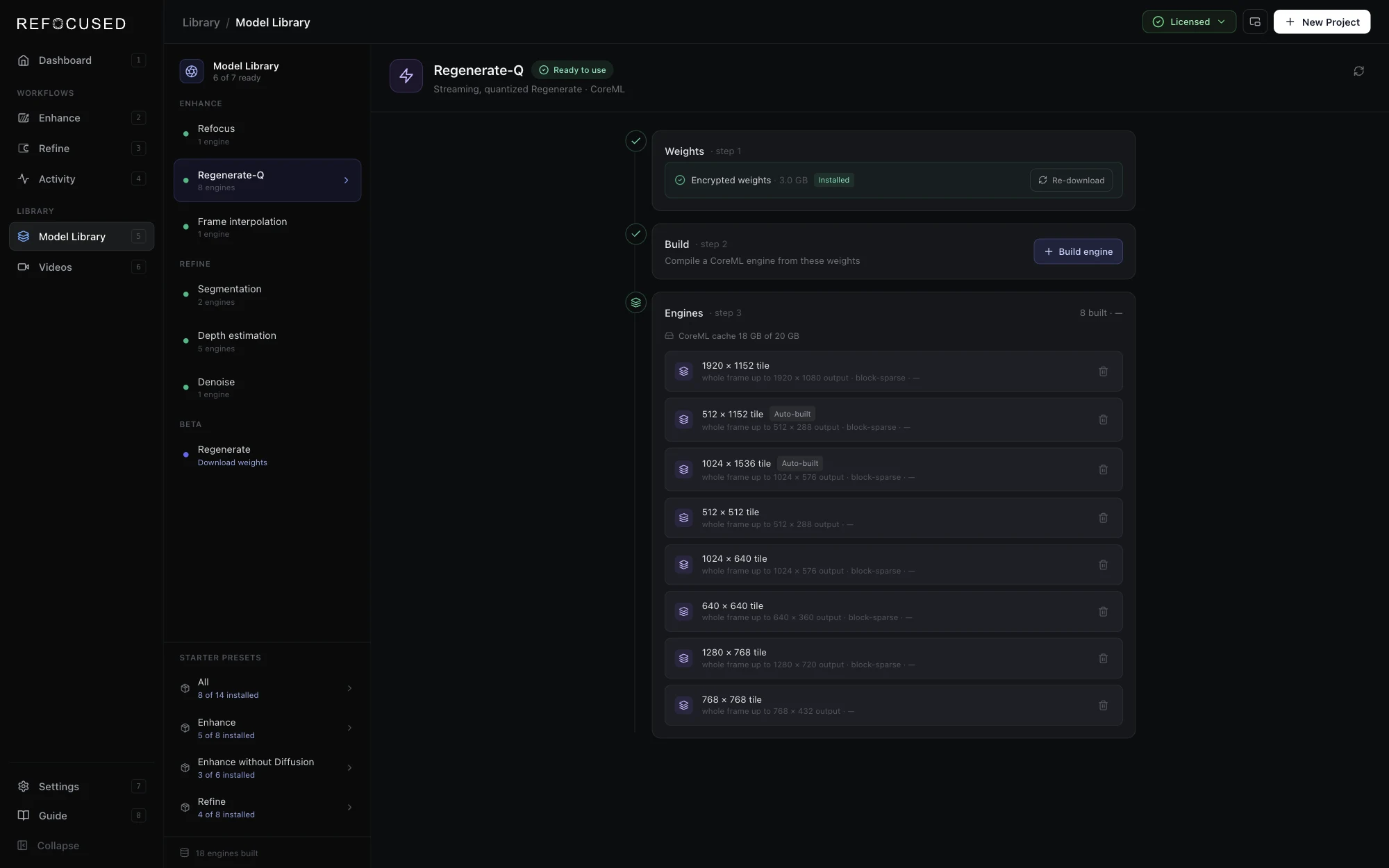
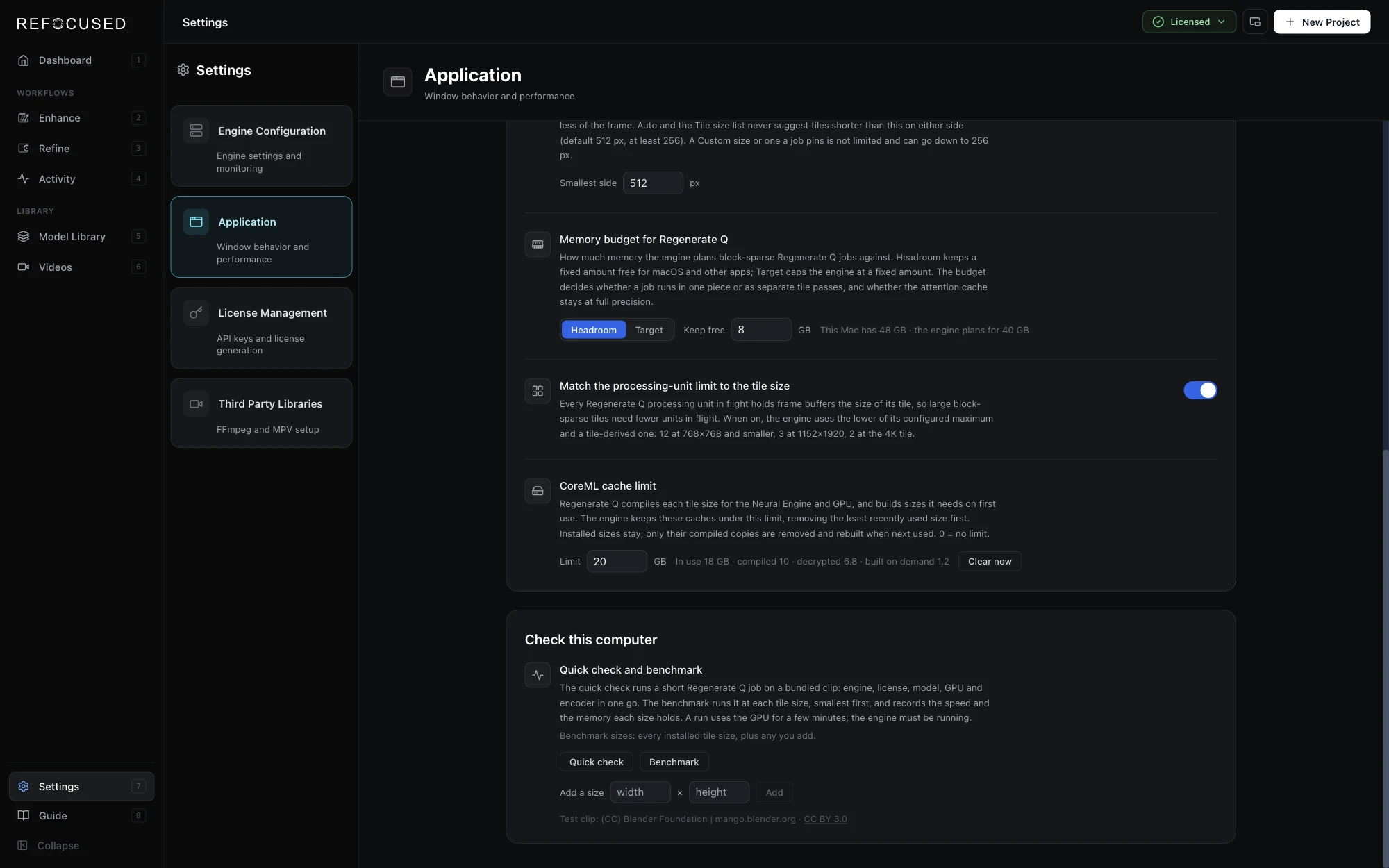
Three settings under Settings → Application go with this. Memory budget for Regenerate Q decides how much of the Mac's memory the engine plans against, as a headroom to keep free or a fixed target; it determines whether a job runs in one piece or as separate tile passes. Process tiles independently (on by default) runs the tiles of a job that would not fit one after another and assembles them at the end, instead of failing. CoreML cache limit keeps the compiled Neural Engine and GPU copies of every tile size, including Apple's own compiled-model cache, under a limit you choose, removing the least recently used size first; on one of our Macs that cache had quietly grown past 70 GB.
Tile size per job
Regenerate-Q used to pick among the engines you had installed, each built for one tile. It now plans the tile for every job from the output size and your machine's memory: the whole frame when it fits, otherwise the split that is estimated to run fastest. The Enhancement card shows the result as a Tile size row (1920 × 1152 · whole frame, 4 tiles), and the same row sits in Refine's Reprocess dock. Click it to pick any other size from the list, or Custom… on macOS and AMD to enter your own; a smaller tile can be worth it on a machine with less memory. Smallest suggested tile size in Settings → Application (512 px by default) is the floor Auto and the list respect, since very small tiles see too little of the frame.
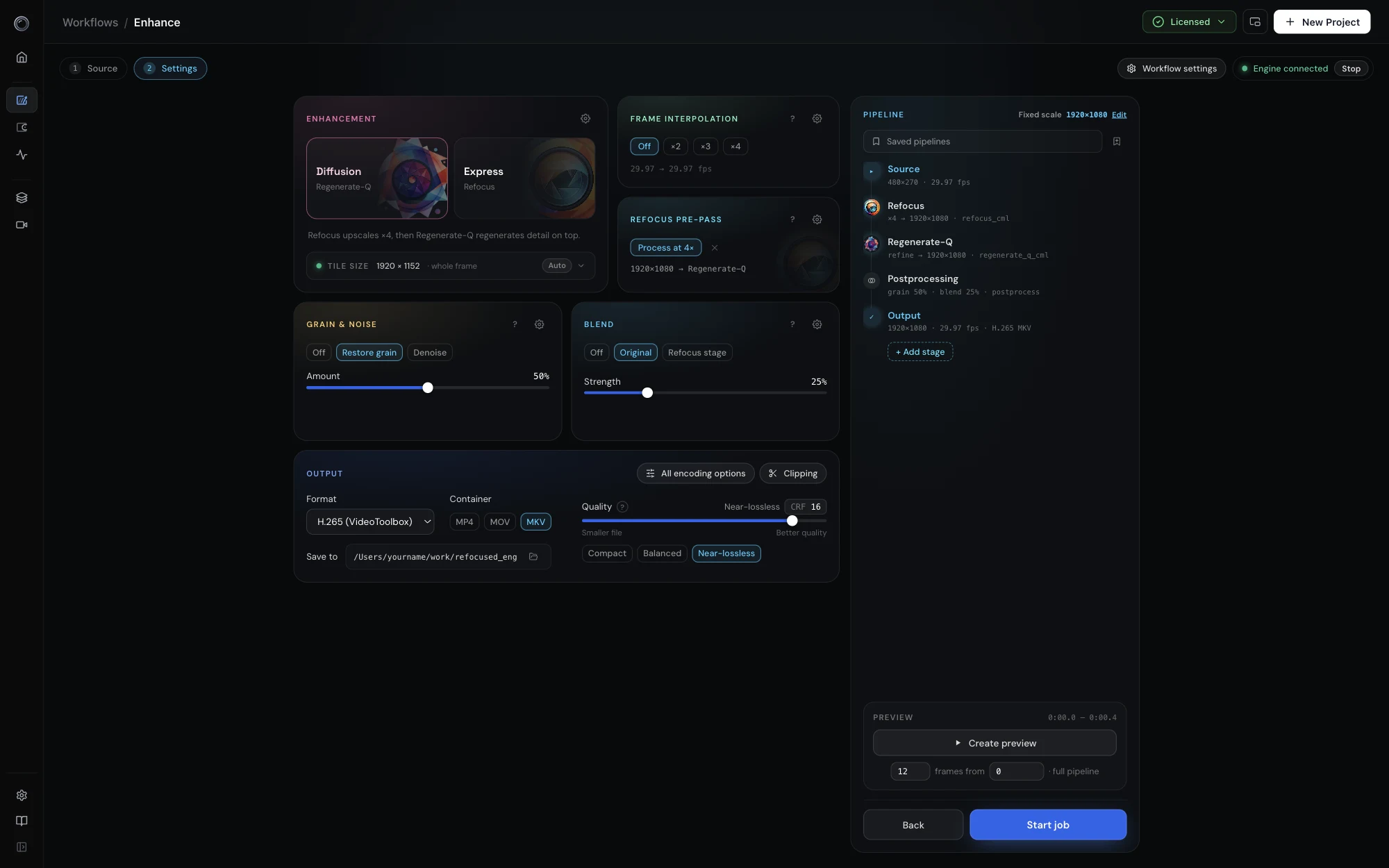
The default minimum overlap between tiles drops from 128 px to 16 px on every platform, so tiled jobs cover the frame with fewer tiles; raise the overlap in the stage's advanced settings if you ever see a seam. Auto also never picks a tile larger than twice the output, and a pinned size that cannot run on this output is flagged under the card before you start the job.
Check this computer
Setup now ends with a quick check: a short Regenerate-Q run on a bundled clip that exercises the engine, the license, the models, the GPU and the encoder together, and reports how it ran. The same check lives in Settings → Application → Check this computer, next to a Benchmark that runs the clip at every tile size and records the speed and memory of each; on AMD, Auto then uses those measurements instead of its built-in estimates. Copy report puts the results on the clipboard for a support ticket. Check runs never appear in your projects.
The Videos library
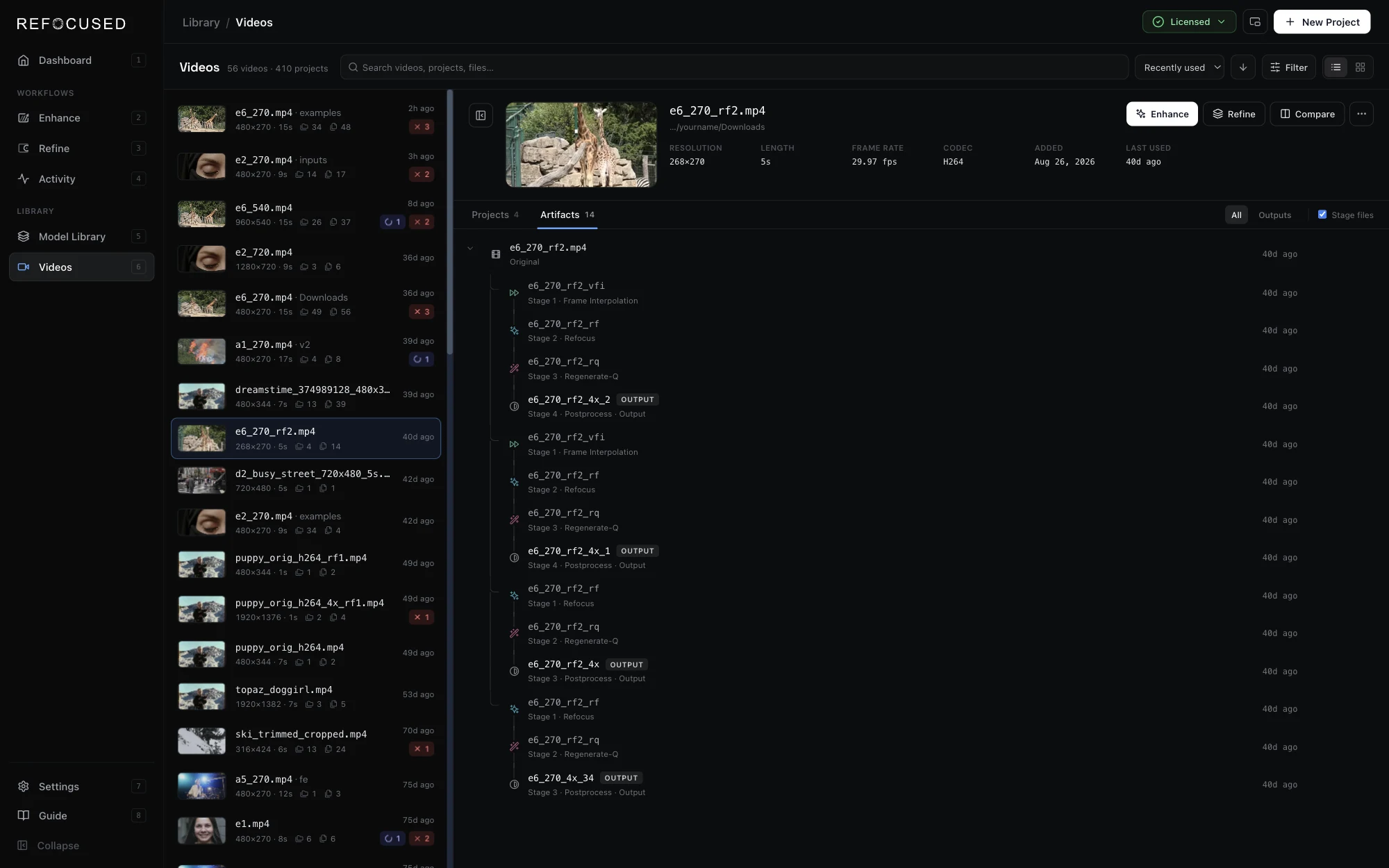
The separate Projects and Videos screens are gone; there is one Videos screen, and the keyboard shortcuts are now 1 to 8. The list on the left has one entry per video you have brought in, sorted by when you last worked on it (or by name, date added, length or number of projects), searchable by video, project or file name, and filterable by workflow, by running, failed or draft jobs, by length and by folder. Each row shows the resolution, length, and how many projects and files the video has; two files with the same name get their folder appended.
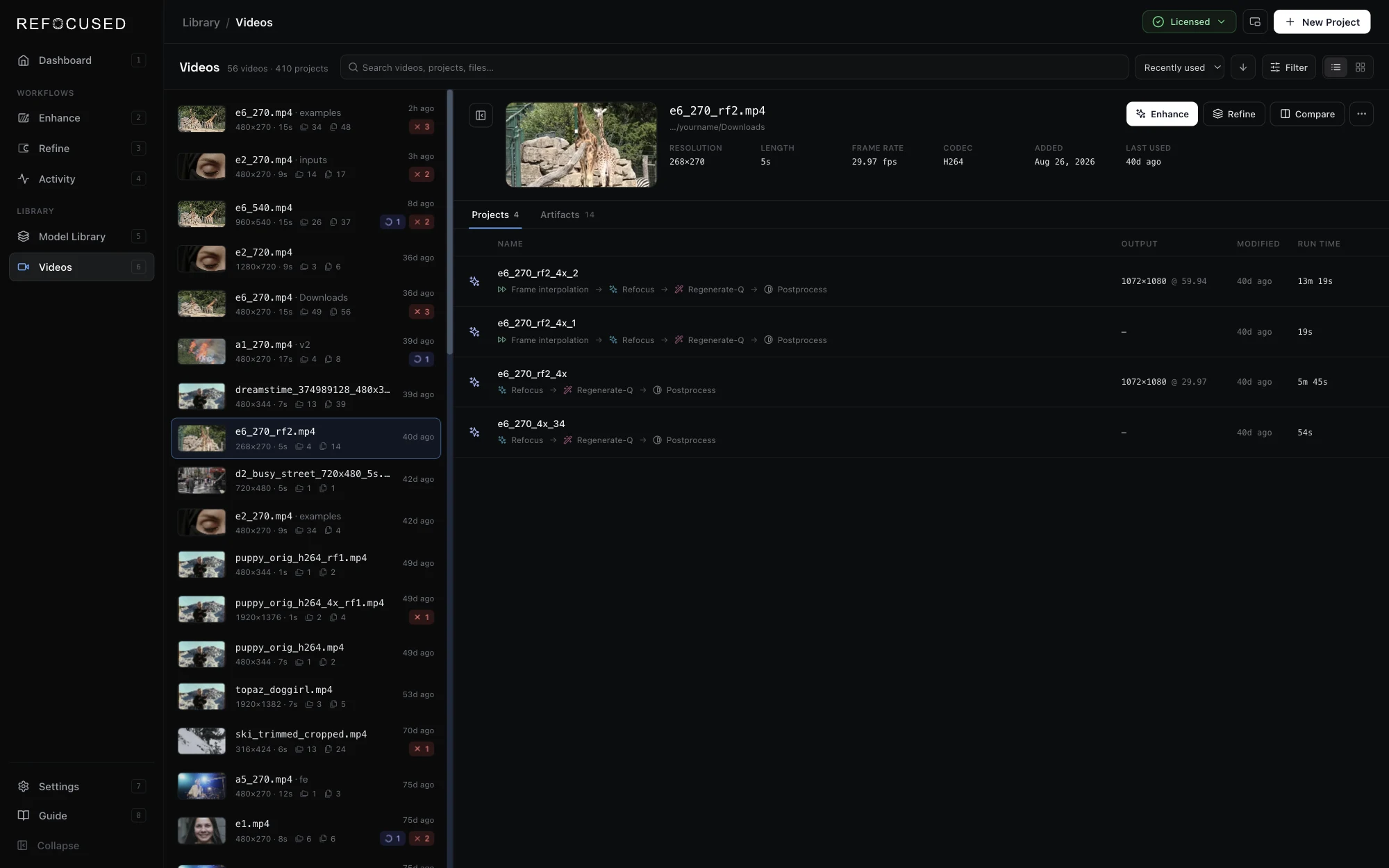
Select a video and the right side shows it in full, with Enhance, Refine and Compare at the top. The Projects tab lists every job run on it with what it ran, the output size and the run time; click a project to open its detail in place. The Artifacts tab draws the video's history as the same lineage tree the Refine Files panel uses: the original, each job's stage files and output, and the versions, patches, mixes, mask sets and depth maps made from each output. Filter the tree to one kind, or hide the stage files so each output hangs straight off what it was run on.
Model updates on macOS
Software Update in Settings → Application now keeps the Essentials models current as well as the app. When the model catalog has a newer set for your Mac, the card lists the model updates and offers Update models, or Install app and model updates together. Downloaded models install when the engine is idle, so a running job is never interrupted, and models you built yourself are never replaced. A Model set card picks which set the updater follows, 16 GB+ or 32 GB+, matching the two Essentials editions.
Bug fixes
Engine
- Long Regenerate-Q clips failed partway through. A clip of more than about 4,000 frames (around two and a half minutes at 24 fps, just over a minute at 60 fps) failed at chunk 510 with a tensor shape error, on every platform. Fixed.
- Windows: intermittent engine load failure. Engine startup sometimes failed with Unable to load library … leanRuntime_.dll* and the job had to be resubmitted. Child processes the engine spawns, such as the GPU probe, inherited the handle of a temporary DLL TensorRT was still writing. They no longer do.
- A failed inference was reported as cancelled. When a model failed mid-job the job was marked cancelled with no error text, and in a multi-stage Enhance the later stages ran on the truncated file and the project ended as completed. The job is now marked failed with the engine's own reason, and the stages after it are cancelled with Earlier stage … failed.
- Cancelling a queued job took effect late. The engine finished planning and loading the engine before honouring the cancel. It is now cancelled immediately.
App
- Refine: Reprocess did not restore the original frame count after frame interpolation. The restore the original frame count option in the Reprocess dock, on by default for the Consistency fix, re-encoded the patch without dropping the in-between frames, so the patch came back with twice (or three or four times) the frames and could not be blended back. The in-between frames are now dropped by frame index, so the patch keeps exactly the source frames.
What's next
- Continued AMD Testing This release targets the RX 7000 series. We are testing more cards and will widen the supported list as we verify them.
- Deinterlacing. A learned deinterlacing model, for footage where the decode-time filter leaves combing or softness behind.
- Stabilization. A stabilization model for handheld and tape sources.
- The next generation of the Regenerate model family. Better detail and consistency from the diffusion models that do the heavy lifting in Enhance.
To update, download the latest build from the install page, or use the in-app updater in Settings → Application.